Projects and set list
Composition and set list
Section titled “Composition and set list”A project is linked to one Arena composition. Every column becomes a song of the set list, named after the column, and is paired with the camera clips found in the same column. Empty columns are included too, so the songs you still have to program are already in the list.
A column without a visual is marked senza visual (no visual). Once it has an audio, its timeline lasts as long as the audio, at the frame rate of the other visuals, so you can place the cuts on the music before the visual is ready. When you later put the visual in the column in Arena and reread the composition, the camera work stays. For a song with neither visual nor audio, for example a song that is played only live, type its length in the Visual panel (Durata, Length, e.g. 4:30): the timeline gets that length, silent, and plays in real time. If the camera clip already has a length in Arena, that is used until you type one. An audio assigned later takes over the length.
- Layer camera (above the set list) chooses which layer holds the camera clips. Automatico takes every live source (capture/NDI/Syphon…) in each column; picking a layer keeps only the camera on that layer.
- In the Clip camera panel you can pick a different camera clip for the selected song.
- If a column has more than one visual, the app picks the clip on a layer named Visual (or, if there isn’t one, the lowest layer with a video). Choose a different one in the Visual panel. Still images (JPG, PNG…) are never used as a visual: they have no length to cut on.
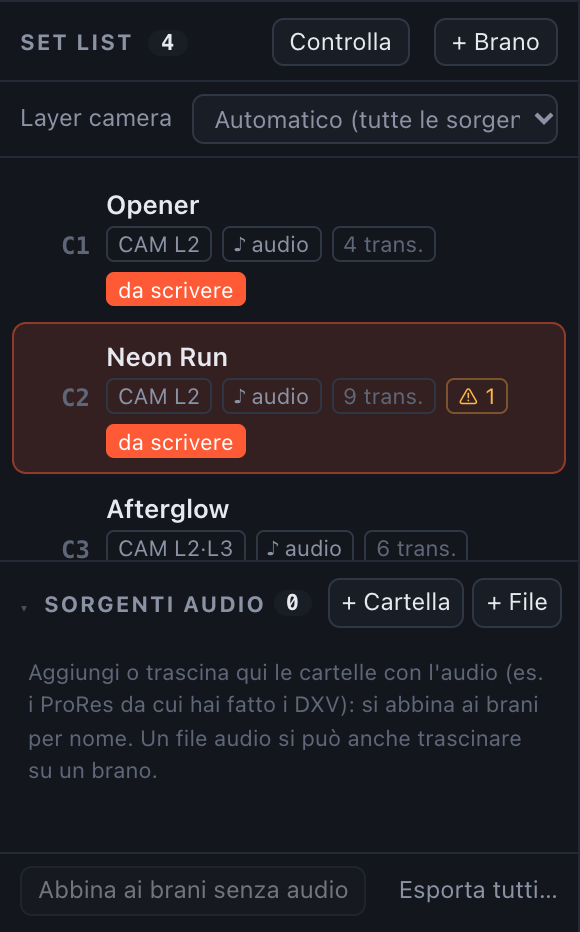
The set list: cameras, audio, transitions, warnings and songs still to write
More than one camera in a column
Section titled “More than one camera in a column”If a column holds two or more cameras (say PGM1 and PGM2), each one gets its own envelope and its own coloured opacity lane in the timeline, one under the other. In the set list the song shows all of them (e.g. CAM L2·L3).
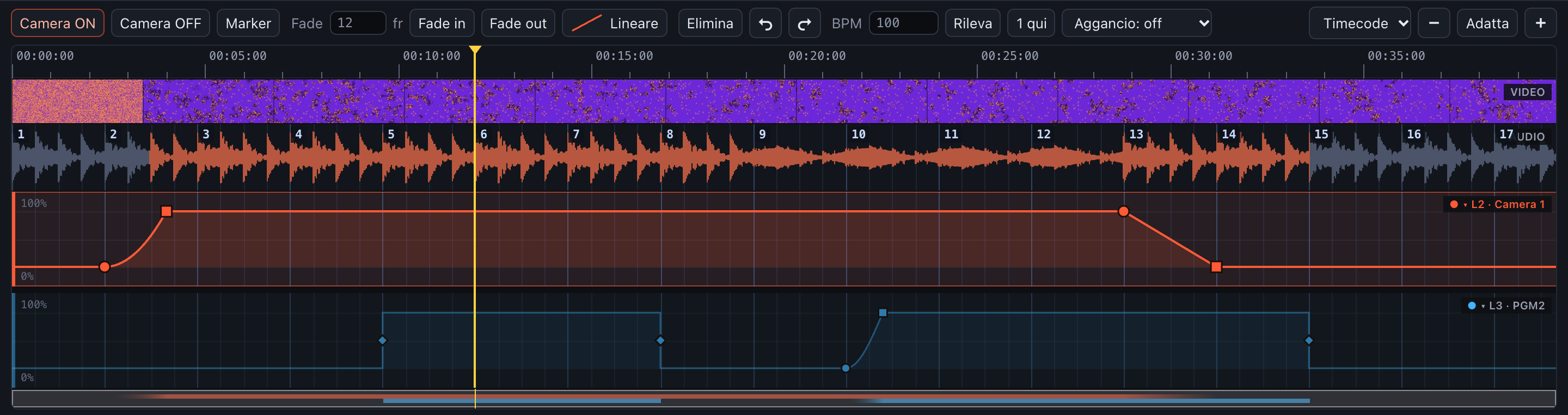
Two cameras in the same column: one lane each, the active one highlighted
- Click a lane (or press
Tab/⇧Tab) to edit that camera; the others stay visible, dimmed. The transitions list, the camera badge on the preview and the notes in Clip camera follow the active camera. - Click a lane’s name (top right) to collapse it to a thin strip that still shows its curve and keyframes; click the strip to open it again. Collapsed lanes are saved with the project.
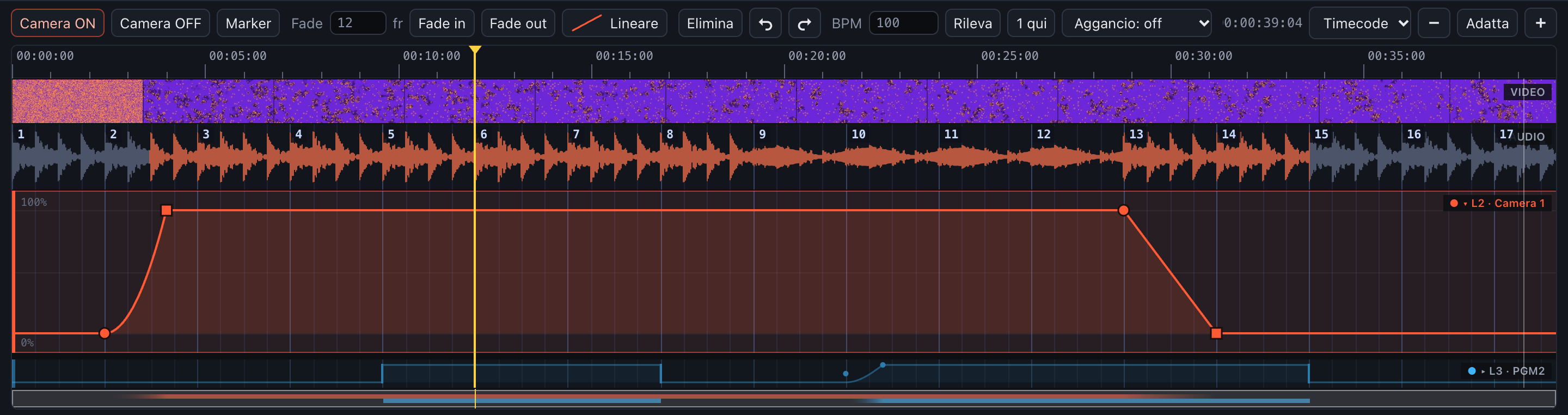
The PGM2 lane collapsed: its cuts and fades are still visible
- + Camera in the Clip camera panel adds another camera of the same column to the song (if there are none left, the new lane starts without a camera and you pick its clip); × removes one from the song (in Arena the clip stays as it is). Each clip can belong to one lane only.
- Scrivi in Arena writes every changed camera in one go. Transport and timeline duration apply to all of the song’s cameras.
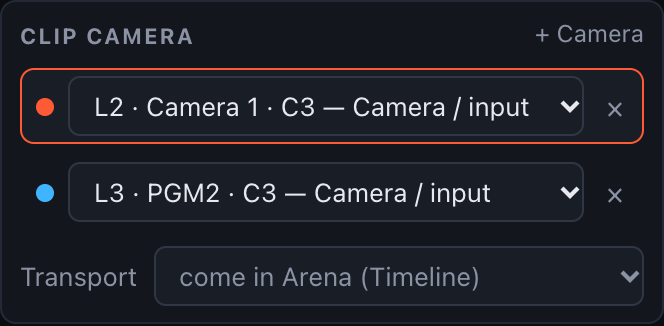
The Clip camera panel with two cameras; the outlined row is the one being edited
The preview shows the cameras that are on air side by side: see Playback and preview.
To change composition, use Cambia ▾ (Change) in the top bar:
- Quella aperta in Arena: the composition currently open in Arena.
- Apri un file .avc…: any composition file.
- Rileggi dal disco (Reload from disk): rereads the file, keeping your edits. If the
… - FTT edit.avccopy is newer than the project’s composition (you changed it in Arena and saved it), the copy is reread and the project switches to it. Save in Arena first: the app reads the file on disk. Camera clips added to a column in Arena become new lanes of that song.
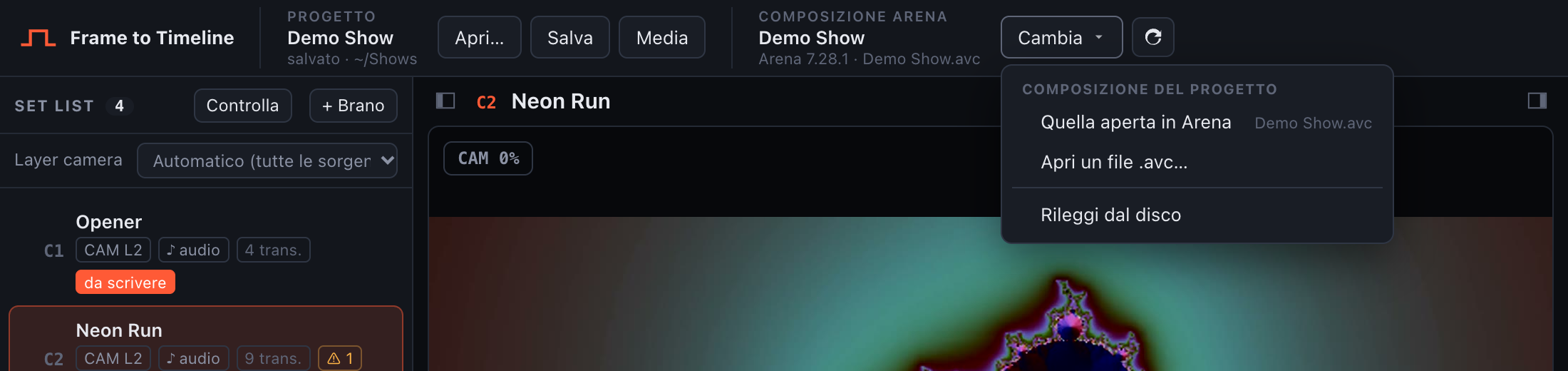
The Cambia menu in the top bar
+ Brano (Add song), or dragging video files onto the window, adds songs by hand, even without a composition.
Each song needs its show audio (the track that actually plays in the show) so you can place cuts on the music.
- Drag an audio file onto the song’s row in the set list, or use Audio ▸ Scegli… (Choose). A video with an audio track works too, for example the ProRes a DXV was converted from.
- If no audio is assigned, the app uses the visual’s own audio track, if it has one (dal video).
- Ritardo audio (Audio delay, ms) shifts the audio against the visual when they don’t start together: positive = the audio starts after the video, negative = before.
- Canali (Channels): Entrambi (Both), Solo sinistro (Left only) or Solo destro (Right only). Use a single channel when the other one carries something else, for example LTC timecode: playback, waveform and exported WAV use only that channel, on both speakers. The set list shows
♪ audio · Lor· R. - Salva… (Save) in the Audio panel saves the song’s audio as a WAV file.
Supported audio: WAV, AIFF, MP3, FLAC, M4A, AAC, OGG, and the audio track of MOV, MP4, AVI, MKV, M4V, WebM and MXF videos.
Audio sources: taking the audio from the ProRes
Section titled “Audio sources: taking the audio from the ProRes”DXV and HAP files are often exported without audio, while the ProRes they were converted from still has it. Sorgenti audio (Audio sources), under the set list, collects the files the audio can come from:
- Click + Cartella (Folder) and pick the folder with the ProRes (subfolders are read too), or + File for single files. You can also drag folders and files from Explorer or Finder onto the panel.
- The app lists the files that have an audio track and proposes a match for every song that has no audio yet: first the file with the same name, then the same name without case and format suffixes such as
_proresor_dxv, and finally the most similar name with the same length. Check the list and confirm with Abbina (Match). Songs that already have audio are left as they are. - To assign a file by hand, drag it from the panel onto a song, or double-click it to give it to the selected song.
Right-click a file for more options: Dai al brano selezionato (Give to the selected song), Esporta audio… (Export audio), which saves its audio as a WAV file with all its channels, and Togli dalle sorgenti (Remove from sources). Removing a file only takes it off the list: it stays on disk, and songs that already use it keep their audio. To bring it back, add it again with + File, or remove its folder with × and add the folder again.
Each file shows the song it’s assigned to. If its length doesn’t match the visual (a different number of frames, or a different duration), the song gets a ♪ durata? (length?) flag: it’s probably the audio of another version of the visual.
The audio is extracted from the video once, without re-encoding, into the app’s cache; playback and waveform then use that copy. The project stores only the path of the source file, so on another computer the audio is extracted again the first time. Esporta tutti… (Export all) saves the audio of every song into a folder, as WAV files named after the visual.
Missing files and the media manager
Section titled “Missing files and the media manager”Media in the top bar opens the media manager: every file the project uses, grouped as Composizione (composition), Video dei brani (song videos), Audio dei brani (song audio) and Sorgenti audio (audio sources). Each file has a dot: green when it’s on disk, blue when it has been relinked (with the path it had before), red when it’s missing. Solo i mancanti (Missing only) hides the files that are fine.
When something is missing, the Media button shows how many files, and a bar above the set list says so too, with a link to the media manager.
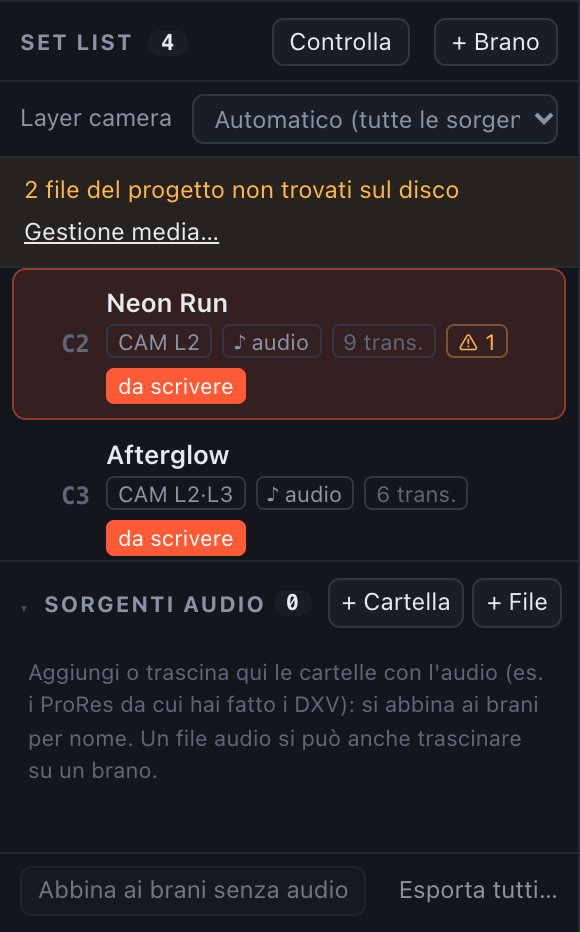
The missing files bar
To relink:
- Cerca in una cartella… (Search in a folder): pick a folder (an external drive works too) and every missing file found there by name, in any subfolder, is relinked.
- Ricollega… (Relink) on a file: pick it by hand. The app works out how the path changed (for example
C:\Users\Marco\Desktopbecame/Volumes/SSD) and tries the same change on every other missing file and folder, so one pick often relinks the whole project. The changes it learned are listed at the top as Percorsi cambiati (Changed paths).
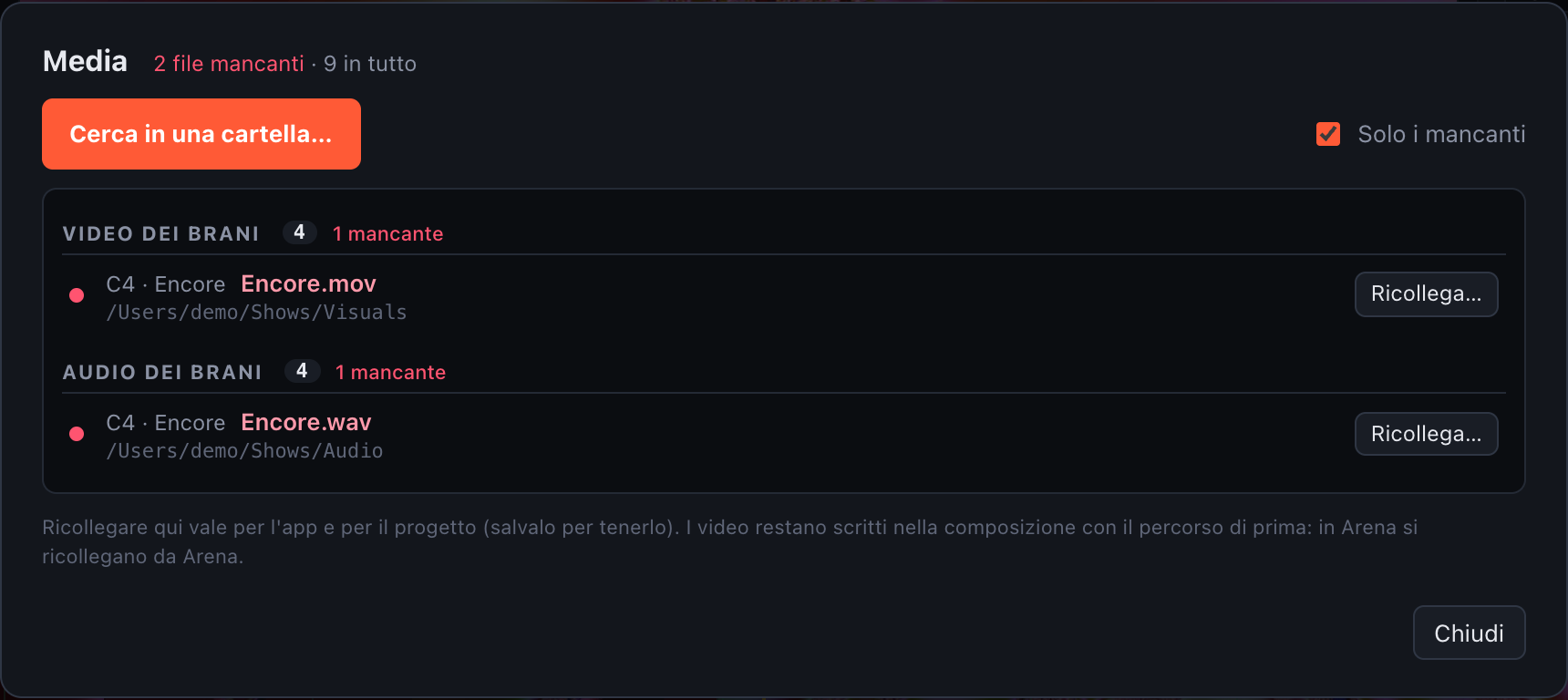
The media manager with two missing files
Relinked paths are used by the app and stored in the project: save it to keep them. The composition itself still points the videos to their old paths, so if Arena can’t find them either, relink them in Arena.
Projects from another computer
Section titled “Projects from another computer”A project saved on Windows opens on a Mac and the other way round. If the composition isn’t at its stored path, the app looks for it next to the project file (and, on a Mac, with Spotlight); if it can’t find it, it asks you to pick it, or to open the project without it. From the composition it finds, the app learns how the paths changed and uses that to find the audio, the audio sources and the videos. The top bar then shows the project as modified: save it to keep the new paths.
If you open the project without its composition, the set list stays empty but the songs aren’t lost: relink the composition in the media manager and the whole project loads.
The media manager opens by itself when you open a project with missing files.
Saving
Section titled “Saving”The project file (.ftt) stores the set list, audio files and audio sources, camera choices, BPM, markers and every keyframe, including the ones not yet written to Arena.
- Salva /
⌘S(Ctrl+S) saves;⇧⌘Ssaves with a new name. - Apri… /
⌘Oopens another project. - Under the project name the top bar shows non ancora salvato (never saved), salvato (saved) with its folder, or modifiche non salvate (unsaved changes) in orange.
Autosave and closing
Section titled “Autosave and closing”- Every change is autosaved in the background a moment after you make it. If the app quits unexpectedly, the welcome screen offers to restore that work next time. The project file itself is only written when you save.
- Closing the window or quitting (
⌘Q) with unsaved changes asks whether to Salva (Save), Non salvare (Don’t save) or Annulla (Cancel). The same question appears when you open or start another project.
Checking the whole show
Section titled “Checking the whole show”Controlla (Check) at the top of the set list opens a summary of every song: transitions, cameras and audio, and the warnings found (very short flashes, transitions that change nothing, missing camera or audio). Each item has a button to jump straight to it.
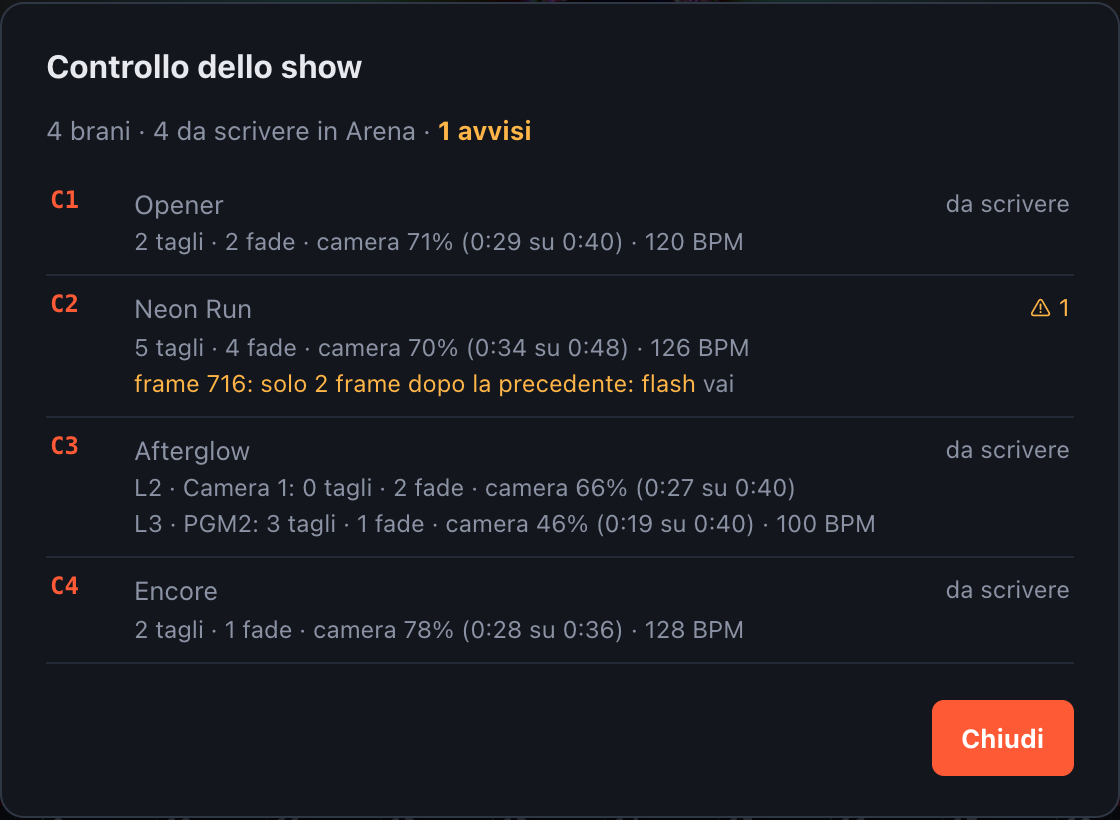
The show check