Writing to Arena
The edit copy
Section titled “The edit copy”Frame to Timeline never modifies your original composition. Everything is written to a copy next to it, named <composition> - FTT edit.avc. The panel at the bottom right shows its name under Scrive in (Writes to).
Writing
Section titled “Writing”Press Scrivi in Arena (Write to Arena). The app lists the songs that changed and any warnings; confirm with Scrivi (Write).
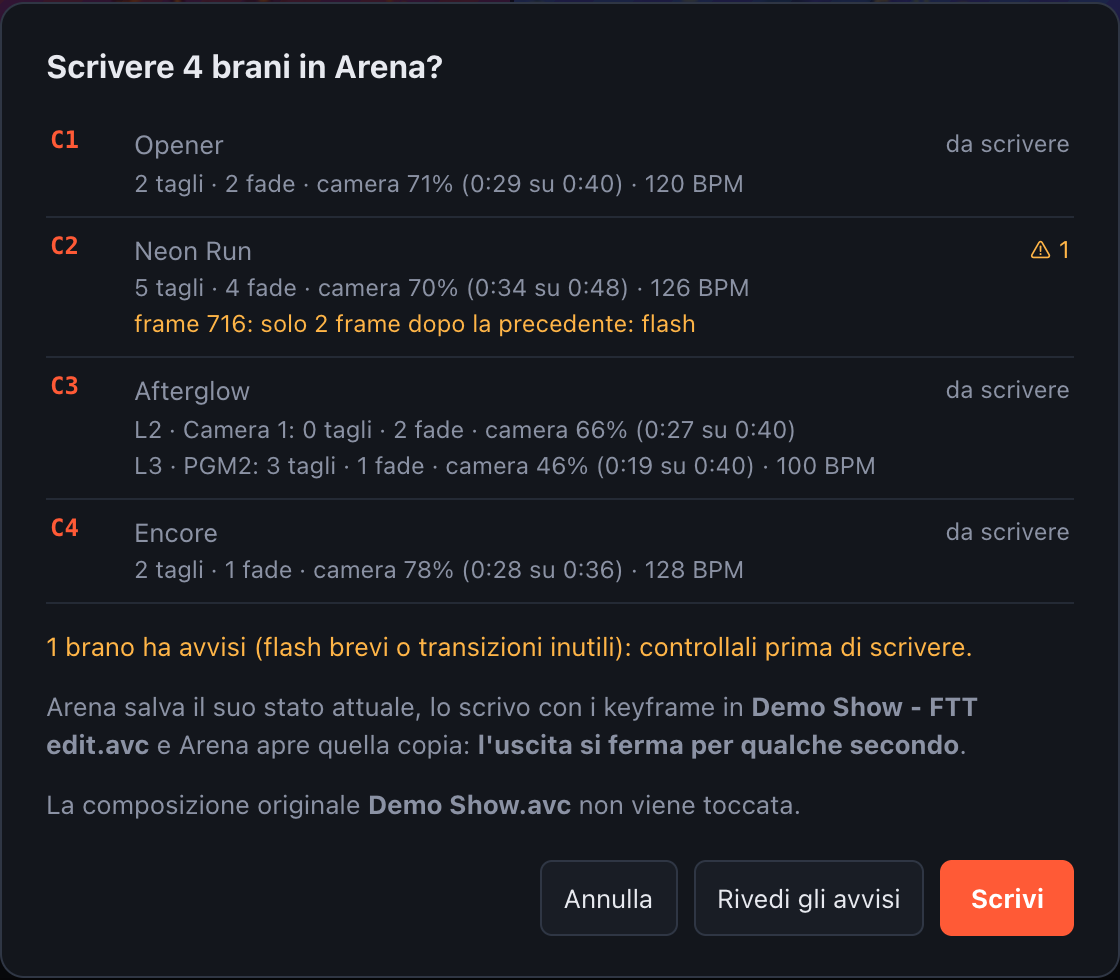
Confirming the write
With Aggiorna anche Arena (Also update Arena) checked and Arena connected to this composition, the write goes through four steps:
- Arena saves its current state into a temporary file,
<composition> - FTT temp.avc(so nothing you changed in Arena is lost). - The app writes the keyframes into the copy, starting from that state.
- Arena opens the copy and the temporary file is deleted. If Arena doesn’t open the copy, it stays on the temporary file, which has the same content as before: the output never goes blank.
- The app checks in Arena that every clip has the expected duration (or is on timecode, when expected).
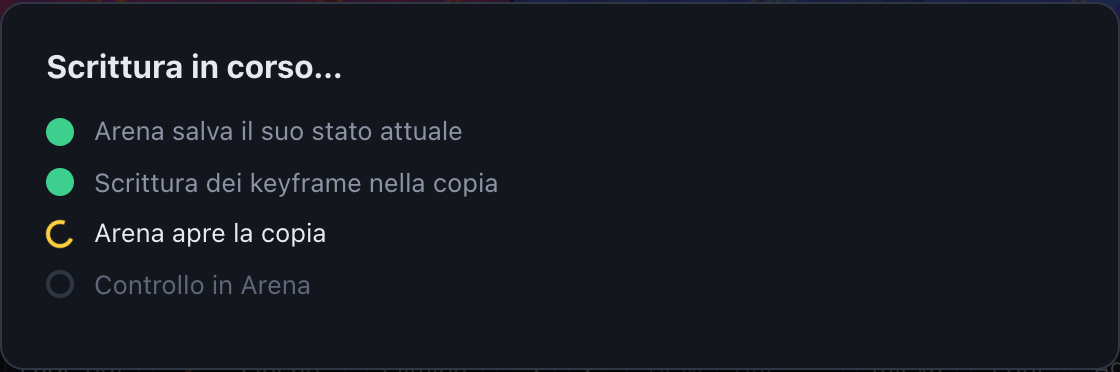
The write in progress
Without a connection only step 2 runs: open the copy in Arena yourself.
Songs that need writing are marked in the set list. After a successful write the result window lists each song with a ✓ when Arena confirmed it.
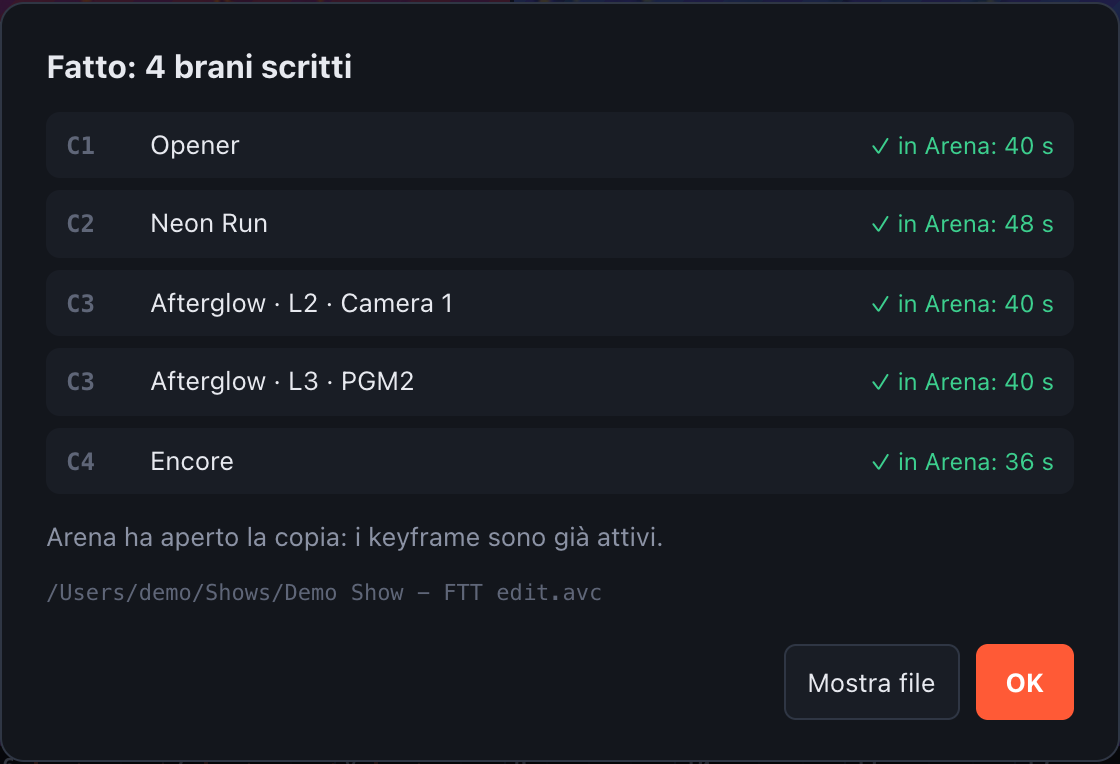
Result: every song confirmed in Arena (one row per camera for Afterglow)
Reading back from Arena
Section titled “Reading back from Arena”If the camera clip already has an opacity envelope in Arena, the Clip camera panel says so (In Arena: envelope con N punti). Ricarica da Arena (Reload from Arena) imports it as the song’s transitions. With more than one camera, the panel and the reload refer to the camera you’re editing.
More than one camera
Section titled “More than one camera”A song with several cameras is written in one go: every camera whose envelope changed gets its own envelope, and the result lists one row per camera. If one of them can’t be written (no clip chosen, or a transport that is neither Timeline nor Timecode), the whole song is left out and the confirmation says why. In the result above, Afterglow has two cameras.
Compensation
Section titled “Compensation”Between reading the file, decoding and output, Arena shows everything about one frame late. Frame to Timeline already accounts for it: every point is written one frame earlier, so with Compensazione at 0 · standard cuts land on the frame in Arena’s output.
If on your system the cuts still land consistently late or early, Compensazione adds a further shift of up to ±2 frames in half-frame steps: negative values (prima) bring them earlier, positive values (dopo) later. Changing it marks all songs as needing a rewrite.
Transport: Timeline or SMPTE timecode
Section titled “Transport: Timeline or SMPTE timecode”The camera envelope is written along the clip’s own timeline, so it works with both of Arena’s transport modes. Transport, in the Clip camera panel, sets how the visual and the camera clip run:
- come in Arena (as in Arena): keep the current mode.
- Timeline: the clips play on their own timeline when the column is launched.
- Timecode (SMPTE): the clips follow incoming timecode (LTC or MIDI). Enter the timecode of the visual’s first frame (e.g.
01:00:00:00). If the visual of that column is already on timecode in Arena, the song is set to Timecode by itself, with the visual’s offset, so the camera starts together with it (a notice lists the songs it did this for). This happens only until you pick a Transport yourself: choosing come in Arena (as in Arena) by hand is kept. The song keeps following the visual: if you move the visual’s offset in Arena (say from04:00:00:00to04:30:00:00), the camera takes the new value the next time the composition is reread. An offset you type by hand is kept until it’s written; meanwhile the panel warns that the visual will be moved to it too.
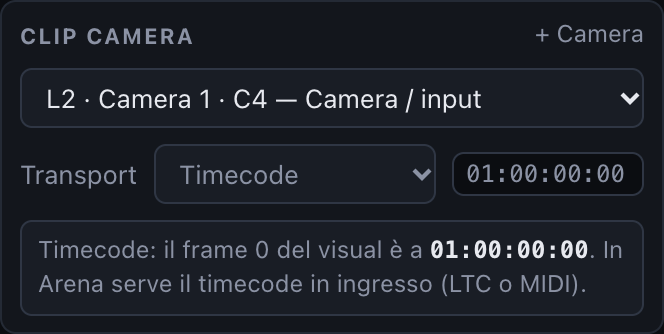
A camera clip set to timecode, starting at 01:00:00:00
The change is applied at the next write. The app reads each clip’s mode live from Arena, so a change made in Arena without saving is taken into account. The panel notes when the mode in Arena differs from the one you chose, and in SMPTE mode the readout under the video shows the timecode for every frame.