Troubleshooting
Arena is not connected
Section titled “Arena is not connected”Click the Arena badge in the top bar for a checklist:
- Arena is open on this computer.
- Webserver and REST API enabled: Preferences ▸ Webserver ▸ Enable Webserver & REST API.
- Arena answers on localhost:8080: if the webserver is on but doesn’t answer, check the firewall and the port, then restart Arena.
- Arena has this composition open: otherwise the app only writes the file.
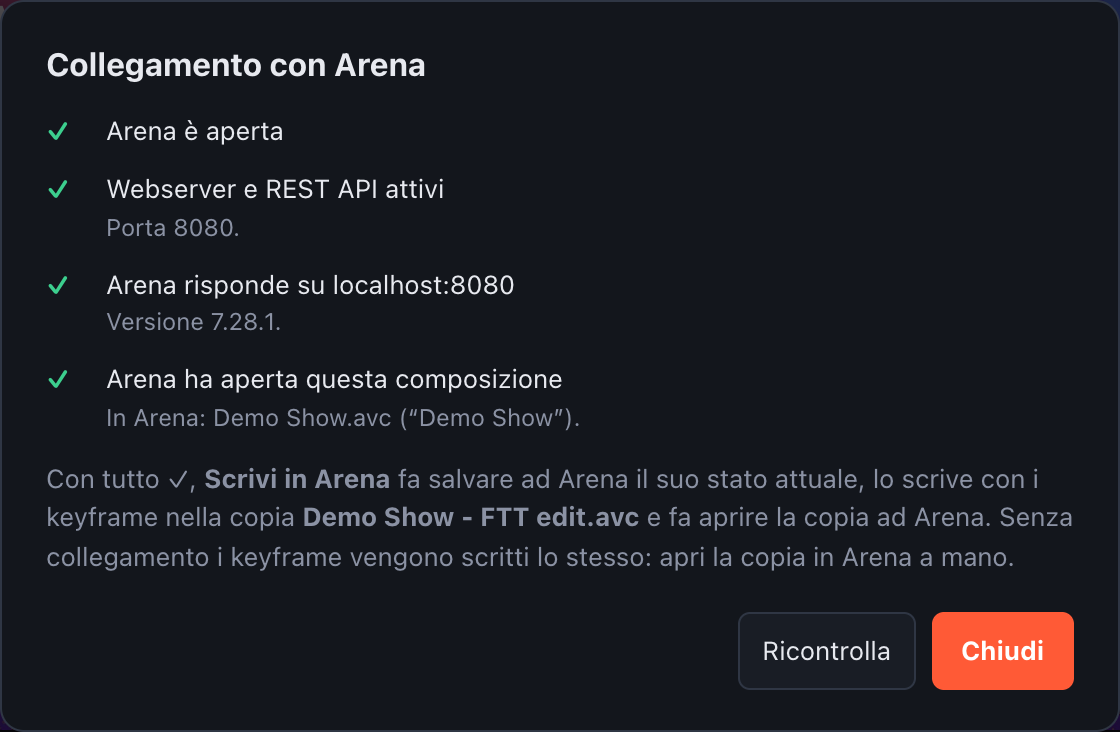
The Arena connection checklist
The welcome screen and the badge check again every few seconds, so you can open Arena while the app is running.
“Another composition is open in Arena”
Section titled ““Another composition is open in Arena””The keyframes are written to the copy, but Arena isn’t reloaded because it has a different file open. Open the … - FTT edit.avc copy in Arena, or switch the project to the composition Arena has open (Cambia ▸ Quella aperta in Arena).
The camera clip is neither Timeline nor Timecode
Section titled “The camera clip is neither Timeline nor Timecode”The envelope can only be written to clips whose transport is Timeline or SMPTE timecode. In the Clip camera panel set Transport to Timeline or Timecode and write again.
A camera of the column is missing
Section titled “A camera of the column is missing”With Layer camera set to a specific layer, each song keeps only the camera on that layer. Set it back to Automatico to get every live source of the column, or add the missing one with + Camera in the Clip camera panel. If the clip isn’t in the column at all, add it in Arena and reread the composition (Cambia ▸ Rileggi dal disco).
Cuts look late (or early) in Arena
Section titled “Cuts look late (or early) in Arena”First check that the audio is aligned with the visual (Ritardo audio in the Audio panel). The app already writes every cut one frame early to make up for Arena’s output delay. If the output is still consistently off, use Compensazione in the write panel: negative values bring the cuts earlier.
Files not found
Section titled “Files not found”When a project or a composition comes from another computer, or an external drive isn’t connected, the paths of videos and audio may not exist. Open Media in the top bar (or Gestione media… in the bar above the set list) and use Cerca in una cartella… on the folder or drive where the files are now, or Ricollega… on a single file: the others with the same path change are relinked with it. See Missing files and the media manager.
A project opens with an empty set list
Section titled “A project opens with an empty set list”The project’s composition wasn’t found on this computer and you chose to open it without. Connect the drive with the composition if needed, then in Media use Ricollega… on the composition: the project loads with all its songs.
The window is too cramped
Section titled “The window is too cramped”Drag the edge above the timeline to share the height differently, close the set list or the song details with the icons beside the song title, or shrink the interface with ⌘ / Ctrl + −. See Fitting the window.
“ffmpeg mancante”
Section titled ““ffmpeg mancante””The FFmpeg included in the app wasn’t found: the installation is incomplete (or an antivirus removed ffmpeg.exe / ffprobe.exe from the app folder). Reinstall Frame to Timeline.
A DXV preview looks slanted
Section titled “A DXV preview looks slanted”FFmpeg versions before 9.0 decode some Resolume DXV files wrongly: when the width isn’t a multiple of 16 pixels (for example 1848), the preview comes out sheared diagonally, while Arena shows it correctly. The app includes FFmpeg 9.0.2 and always uses it, so this only happens with a build of the app that doesn’t include it; the top bar then shows ffmpeg vecchio (old ffmpeg).